
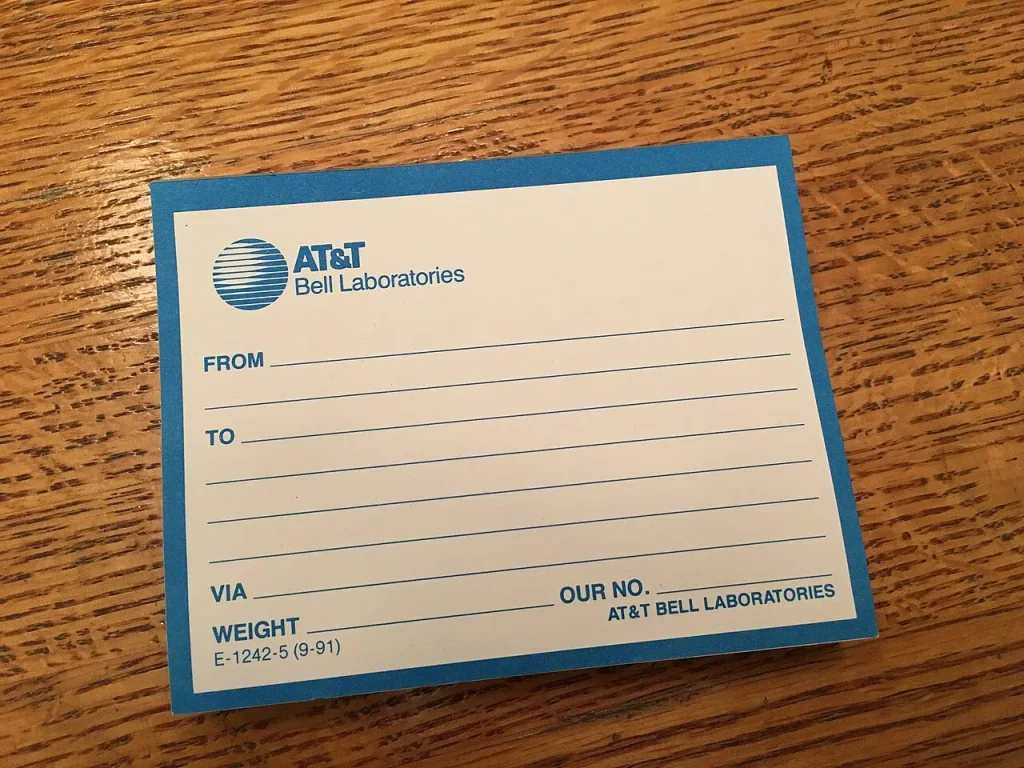
If you typed avery.com templates into a search bar, you probably have a sheet of labels in front of you and a print job that needs to happen today. Here’s the short version: you identify your product code, find the matching template on the official site or inside your software, and fill it in. This guide is independent and isn’t affiliated with Avery, so for exact tools and the current list, check the site itself.
Q: What do avery.com templates actually give you?
In general terms, the official site offers a way to look up a layout for a label or card product and then open it in a format you can edit. Depending on what’s offered at the moment, that may include an online designer, files for common word processors, and downloadable layouts for other design programs. Features change over time, so I won’t promise a specific one here.
What stays constant is the logic. Every layout is built around a particular sheet, so the lookup always starts with your product.
Q: Where do I find my product code?
On the box. Look for a short code, usually a number or a number with a letter, near the product name. Sheets sometimes carry the code on the backing as well. If you’ve lost the packaging, measure the label, count how many fit on a sheet, and note the shape. Those three details help you narrow the options on the site, but a code is always faster and more reliable.
Q: Online designer or a file for Word?
Both routes work, and the better one depends on your project.
| Route | Good for | Watch out for |
|---|---|---|
| Online designer | Quick one-off labels, simple layouts with text and clip art | Needs a connection; your design lives in the account or browser |
| Word or similar file | Mail merge, offline work, fine control over fonts | Gridlines hidden by default, easy to nudge cells by accident |
| Image-based design in another app | Heavy artwork like product branding | You must align the artwork to the sheet yourself |
If you’re doing a mailing, pick the Word route (most avery.com templates open that way), because merging a spreadsheet into labels is where it shines. If you want a single branded sticker, an online designer is faster.
Q: Can I build the artwork somewhere else?
Yes. Plenty of people design a logo or a pattern in a general design app, export it as a PNG or PDF, and drop it into the label cell. Our guide to free Canva templates explains what that kind of tool offers for the artwork side. Just remember to size the image to the label, not the full page, and to keep a little margin.
Q: Why does my print come out shifted?
Nine times out of ten it’s a print setting. The usual culprits are page scaling (“fit to page” or “shrink to fit”) and the wrong paper size. Set the scale to 100 percent or “actual size,” and make sure the paper size matches what’s in the printer. Then test on plain paper and hold it up against the sheet to compare. There’s a dedicated post on fixing print alignment problems, and a separate one on choosing the right sheet in the first place.
A step-by-step run through
- Grab the product code from the box.
- Open the template tool on the official site, or the label options in your word processor.
- Enter the code and confirm the preview matches your sheet.
- Choose your format and open it.
- Enable gridlines so you can see the label boundaries.
- Add your text or artwork in the first label.
- Copy to the rest, or start a mail merge.
- Print a test on plain paper, check alignment, then load the real sheet.
Little things that go wrong
Printer feed direction
Which side faces up differs between printers, and so does the orientation. If your test page prints on the wrong side or upside down, mark the plain paper with an arrow and a note about which way it went in. Next time you’ll know exactly how to load the real sheet.
Manual feed and thick sheets
Some printers handle label sheets better through a rear or manual tray, because the paper path is straighter. If you get jams or curled sheets, try that, and feed one sheet at a time instead of a stack.
Used sheets
Reusing a partly used sheet is tempting, but it can jam a printer if a label peels in the machine. If you must, tape down any loose edges and run it through the manual tray. Better yet, use full sheets for important jobs.
Staying legal and tidy with product labels
If you’re selling goods, labels often need more than a pretty logo. Depending on what you sell and where, there may be rules about ingredients, weights or contact details. I can’t tell you which apply to you, so check with your local regulator or trade body. For general advice on using artwork and fonts safely, our short guide to copyright basics online is a good start.
Final thoughts on avery.com templates
Treat the template site as a lookup tool, not a design studio. Start from the product code, choose the format that suits your workflow, and run a plain-paper test every single time. It takes a minute, and it’s the habit that separates people who waste half a pack of labels from those who don’t.
Featured photo: Jonathan Schilling via Wikimedia Commons (CC BY-SA 4.0).

Written by thadmin_r7
The Templates Hub editorial team writes practical, plain-English guides for everyday readers.
More articles by this author →
Nail Templates: Stencils, Guides and Printable Shapes Guide
If you have ever tried to paint a clean French tip freehand, you already know why nail templates…
Router Templates for Woodworking: Make Reusable Jigs
Router templates are simple guides that let a woodworker cut the same shape again and again. A well-made…
Avery.com Templates: Finding and Using Label Layouts
www.avery.com templates explained: match your product number, pick the right layout, set up the print and avoid common…
Infographic Templates: Tips to Make Data Easy to Read
Infographic templates let you present facts, steps and comparisons as pictures that people actually finish reading. Rather than…