
Why do some people finish a document in ten minutes while others spend an evening fighting margins? Usually the difference is the starting file. Good free templates give you a tested structure so you only supply the content. Bad ones hand you someone else’s formatting problems. This guide explains how to tell them apart, and how to make any template yours without breaking it.
What free templates actually save you
A template is a document with the thinking already done. Someone decided the font pairing, the spacing, the order of sections and where the eye should land first. When you reuse that work, you skip the blank-page stage and the layout tweaking stage, which together eat most of the time on any document.
That only holds if the template matches your task. A beautiful poster layout is useless for a one-page report, and a dense business form will frustrate you if you wanted something light. Before you search, write one sentence about what the finished file must do and who will read it. That sentence becomes your filter.
Know the file formats
Free templates usually arrive in one of four shapes, and each has trade-offs.
- .docx opens in Word, and also in Google Docs, LibreOffice and most phone apps. It is the safest all-round choice for letters, reports and forms.
- .pptx is the slide equivalent. It works in PowerPoint, Keynote and Google Slides, though special fonts and effects may shift on import.
- .xlsx suits budgets, trackers and planners, because formulas stay live.
- PDF looks perfect but is usually fixed. Only choose it if the file has fillable fields or you simply want to print and write by hand.
A “Google link” template is a shared file that asks you to make your own copy. That works well when your whole team lives in the browser. If you need to send the finished work to someone who uses other software, export to .docx or PDF and look at the result before you send it.
Check the licence before you download
This step is boring and worth doing. Free does not always mean free for everything. Some templates allow personal use only. Others allow business use but not resale. Some require a credit line.
Look for a licence note on the page or inside the file. If the creator points to a Creative Commons licence, the Creative Commons licence overview explains what each label allows, including attribution and commercial use. When no licence is stated at all, treat the file as personal use only, and look elsewhere if you need it for a client project.
Customise in a sensible order
Most mistakes come from editing in the wrong sequence. Try this order instead.
1. Save a copy first. Rename it so you never overwrite the original. 2. Set the global styles. Change the heading and body fonts through the style menu, not line by line. One change then updates the whole file. 3. Swap the colours. Use your brand or preferred palette in the theme settings if the template has them. 4. Replace the text. Paste as plain text so the old formatting does not follow you in. 5. Replace images. Use the “change picture” option where available, so size and cropping stay put. 6. Delete what you do not need. Remove placeholder sections rather than leaving them empty.
Keep a clean master
Once you have a version you like, store it as your own master. Next time, you start from a file already tuned to your colours and fonts, which is where the real time saving begins.
Compatibility and file size
A template that looks great on the designer’s machine can look odd on yours. The usual culprit is a missing font. If the file uses a font you do not have, your software substitutes another one and the spacing changes. Install the font if the licence allows it, or pick a similar one that you already have and apply it through the styles.
Size matters too. Large templates packed with high-resolution photos can be slow to open and annoying to email. Compress pictures from the file menu, or swap them for lighter versions. If a document must be shared by email, aim for a size that passes most inbox limits, and consider sending a PDF export instead.
Accessibility is part of quality
A template should be readable by everyone, including people using screen readers or viewing on a small phone. Check a few basics:
- Text has enough contrast against its background.
- Headings are real heading styles, not just large bold text.
- Images that carry meaning have alt text.
- Tables are used for data, not for layout.
These checks take minutes, and they also tend to make the document tidier for every reader.
Common mistakes to avoid
- Downloading from the first result. Compare two or three options before committing.
- Leaving sample text behind. Search the finished file for “Lorem”, “Your Name” and “Company Name” before sending.
- Fighting the layout. If you are nudging boxes by single pixels, the template does not fit your content. Choose another.
- Ignoring the licence. A quick read now saves an awkward email later.
- Using too many fonts. Two is plenty. Three starts to look messy.
A quick pre-download checklist
Run through these questions before you click anything.
- Does the format open in the software I actually use?
- Is the licence clear, and does it cover my use?
- Are the fonts common, or easy to replace?
- Is there a preview showing the real layout, not just a pretty mock-up?
- Will the file size be manageable?
If you can answer yes to most of them, you have found a keeper.
Final thought on free templates
The best free templates are plain, flexible and honest about their licence. Spend a few minutes judging the format, check the usage terms, edit through styles rather than by hand, and test the result in the app your reader will use. Do that, and a template turns from a risk into a reliable shortcut you will come back to again and again.
More guides you may like
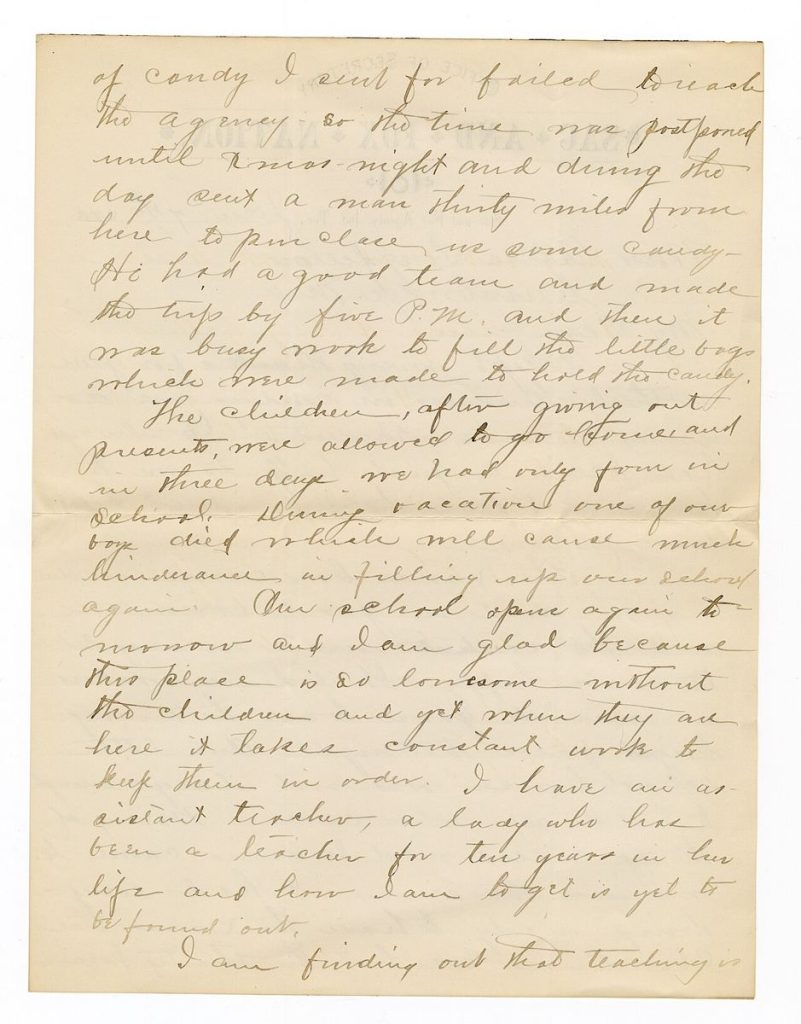
Image credit: Walter C. Battice via Wikimedia Commons (Public domain).

Written by
The Templates Hub editorial team writes practical, plain-English guides for everyday readers.
More articles by this author →
Point of Care Medicine Templates: Types, Benefits and Risks
In a busy clinic, documentation competes with the patient for attention. Point of care medicine templates are structured…
One Pager Templates: Layouts and Tips for a Clear Summary
Busy people rarely read long documents, which is why a single page can carry more weight than twenty.…
Google Drive Templates: Organise and Reuse Your Files
Most people treat Drive like a junk drawer where files go to be lost. A cleaner approach is…
Microsoft Word Templates: Find, Edit and Build Your Own
Word has been the default tool for letters, reports and CVs for decades, and Microsoft Word templates are…