
Word has been the default tool for letters, reports and CVs for decades, and Microsoft Word templates are the reason it stays quick to use. Instead of fiddling with margins and heading sizes, you open a file that is already laid out and type. Here is how to get the most out of them, from finding good ones to building your own.
How Microsoft Word templates work
When you create a new document from a template, Word makes a copy. The original file stays safe. The template holds page size, margins, paragraph styles, headers, footers and any placeholder text. Because the formatting lives in styles rather than manual tweaks, changing a heading style updates every heading at once.
That is the difference between a template that saves time and one that creates mess: good ones use proper styles. If you click into a heading and see “Heading 1” in the Styles panel, you are in good shape.
Where to find a Word template
- Inside Word. Choose File > New and search by purpose, for example “report”, “invoice” or “meeting minutes”.
- Microsoft’s online catalogue. It has a wider selection and can be filtered by category.
- Your own files. Any document can become a template by saving it as a Word Template (.dotx).
The official Word help centre has step-by-step instructions for each of these.
Picking one that fits the job
A resume template needs strong typography and a tight layout. A report needs clear heading levels and a contents page. A letter needs a sender block and space for a signature. Choose by function first, then by appearance. If you are applying for jobs, keep it simple: recruiters scan quickly, and heavy graphics can confuse applicant tracking software.
Customising without breaking the layout
Use styles, not manual formatting
Resist the urge to select text and change the size by hand. Edit the style itself via Home > Styles > Modify. The change spreads through the document and keeps it consistent.
Change the theme
Under the Design tab you can swap theme fonts and colours in one click. Pick a combination that matches your brand or personal taste and everything updates together.
Watch the section breaks
Many templates use section breaks for cover pages and appendices. If something jumps oddly, turn on the formatting marks (Ctrl+Shift+8) to see what is going on.
Creating your own Word template
If you write the same kind of document every week, build a template once. Set up the page, define your heading and body styles, add headers and footers, and include any boilerplate text. Then choose Save As and select Word Template. Store it in your Custom Office Templates folder so it appears on the New screen under Personal.
A small business might keep templates for quotes, invoices and client letters. If you also do bookkeeping, our post on small business bookkeeping basics explains what information those documents should record.
Common problems and quick fixes
- Fonts look different on another computer. Embed the fonts when saving, or stick to common ones.
- Page numbers are wrong. Check whether each section restarts numbering.
- The contents page does not update. Right-click it and choose Update Field.
- Placeholders stay after you type. Use content controls, which clear automatically.
Accessibility and sharing
Use real headings, add alt text to images and keep colour contrast high. This helps screen reader users and also makes your document easier for everyone to skim. When sharing, export a PDF to lock the layout, or share the Word file if others need to edit.
If you want to write more clearly inside any template, the advice in our freelance clients guide on writing a short proposal is a useful example of getting to the point.
Free versus paid templates
Basic documents are well covered by free options. Pay only when you need distinctive design, such as an annual report or a branded brochure, and check that the licence allows commercial use.
In short
Microsoft Word templates save time when they use clean styles, match the job and are easy to customise. Learn how to modify styles and the theme, build one or two of your own, and you will spend less time formatting and more time writing.
A worked example: turning a report into a reusable template
Suppose you write a monthly summary for your manager. The first time, you format it carefully: a title block, a short summary box, three sections and a table of figures. Rather than copy the old file each month and delete the contents, save the finished layout as a template and replace the numbers with prompts such as “Add this month’s headline result here”.
Next month you open a new file from the template, fill in the prompts and you are done in a quarter of the time. If your manager asks for a different font or a logo in the corner, you edit the template once and every future report inherits the change. That is the real payoff: you stop fixing the same formatting problem again and again.
Add a short note at the top of the template, in a colour you will remember to delete, listing what to update each time: the date, the author, the reporting period and the chart source. It acts as a checklist and prevents the classic mistake of sending last month’s date.
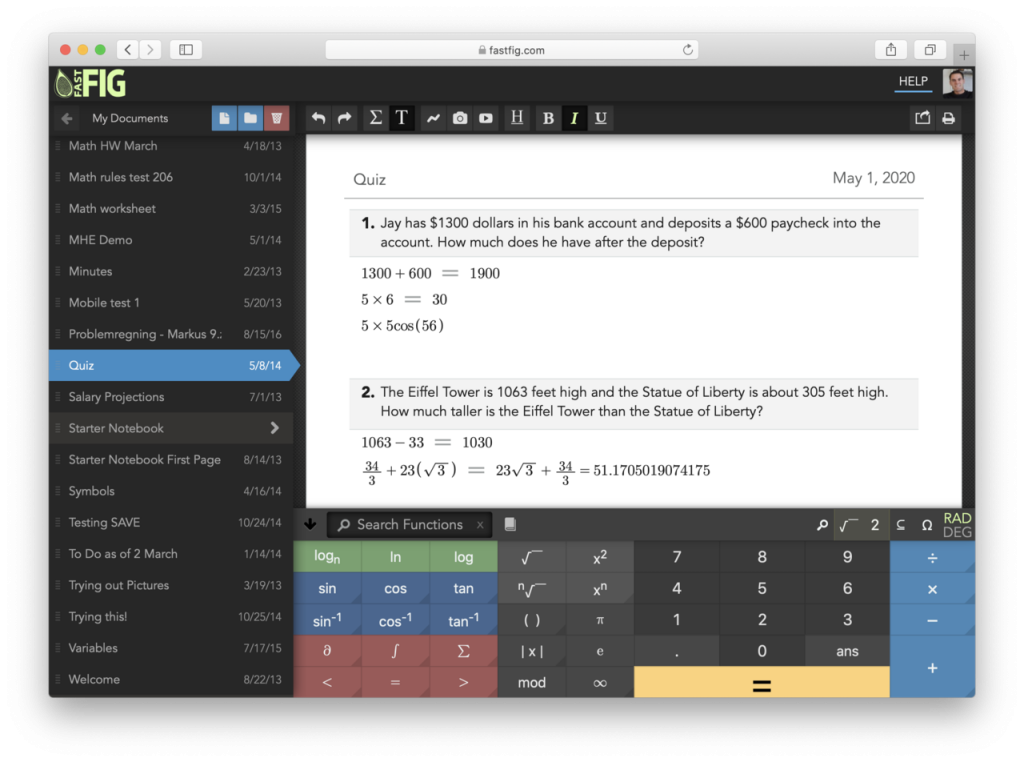
Image: “FastFig Word Processor for Math” via Wikimedia Commons, CC BY-SA 4.0.

Written by
The Templates Hub editorial team writes practical, plain-English guides for everyday readers.
More articles by this author →
Point of Care Medicine Templates: Types, Benefits and Risks
In a busy clinic, documentation competes with the patient for attention. Point of care medicine templates are structured…
One Pager Templates: Layouts and Tips for a Clear Summary
Busy people rarely read long documents, which is why a single page can carry more weight than twenty.…
Google Drive Templates: Organise and Reuse Your Files
Most people treat Drive like a junk drawer where files go to be lost. A cleaner approach is…

Microsoft Templates for Word, Excel and PowerPoint Explained
People searching for Microsoft templates usually want one thing: a ready-made file that saves them an hour. The…