
Most people treat Drive like a junk drawer where files go to be lost. A cleaner approach is to give your reusable files a home of their own. Google drive templates are simply documents, spreadsheets, slides and forms that you keep ready to copy, so every new project starts from a tidy base instead of a half-remembered old file.
Here is a practical way to set that up, without any special tools.
What google drive templates really are
A template in Drive is just a normal file with a rule attached: nobody works in it directly. That is why google drive templates need no special software. You make a copy, rename it and work in the copy. The master stays clean for the next time.
That rule solves three common headaches. You stop losing formatting by accident. You stop sending a colleague a file containing the previous client’s name. And you stop wondering which version is the latest.
Set up a folder for google drive templates
Create one top-level folder called “Templates”. Inside it, group by purpose rather than by file type.
- Clients and sales: proposals, quotes, welcome documents
- Admin: meeting notes, agendas, expense sheets
- Content: blog outlines, social calendars, slide decks
- Personal: travel plans, budgets, checklists
Avoid more than two levels of folders. Deep nesting makes things harder to find, not easier.
Naming that sorts itself
Start each master with the word TEMPLATE in capitals, then the purpose. For example “TEMPLATE – Meeting agenda” and “TEMPLATE – Monthly budget”. Search then returns masters first, and nobody mistakes one for a live file.
Use colour and stars
Right-click a folder to change its colour. Star the five templates you use most so they appear under Starred. Small touches like these save minutes every week.
Three ways to copy a template
1. Make a copy. Right-click the file, then Make a copy. It lands in the same folder, so move it to your project folder and drop the prefix from its name. 2. Force a copy link. Take a shared link and replace the end of the address, “/edit”, with “/copy”. Anyone opening it is asked to make their own copy. This is handy for sharing masters with a team or clients. 3. Use the gallery. Docs, Sheets, Slides and Forms each have an official template gallery on their home screens. Pick from there when you need a fresh start.
The Google Drive Help Center covers file sharing and copy behaviour and is the place to check when the interface changes.
Sharing rules that keep masters safe
Sharing is where template systems usually break down. Use these settings.
- Keep masters private or view-only for everyone except you and one or two admins.
- Share the “/copy” link instead of the file itself, so the original cannot be edited.
- Give team members Viewer access on the Templates folder, so they can copy but not change.
- Use Commenter for review stages and Editor only for people who are actually working in the file.
- Review who has access every few months. Remove anyone who has left a project.
What to keep as a template
Not every file deserves to be a master. Ask whether you have created something similar at least three times. If so, save a clean version.
Strong candidates
- Meeting agenda and notes
- Weekly or monthly report
- Invoice or quote layout
- Content calendar spreadsheet
- Slide deck with your brand colours
- Feedback or registration form
Not worth it
- One-off documents with unique content
- Files that need a full rewrite each time
- Anything with confidential data inside
Always scrub the master before saving it. Remove names, figures, comments, version history notes and hidden sheets. A good test is to ask whether you would be comfortable if a stranger opened it.
Keep formats and compatibility in mind
Drive stores Google files in its own format, but you can download them as .docx, .xlsx, .pptx or PDF. This matters when you work with people who use Microsoft Office. Test one export of each master so you know how it behaves. Charts, fonts and conditional formatting in spreadsheets sometimes change on export, and slide animations can differ. If a template must work offline or in Office, say so in its name or in a note at the top.
Common mistakes
- Working in the master by accident. Fix: put a bold note at the top reading “Make a copy before editing”, then delete it from the copies.
- Hiding templates in My Drive with no folder. Fix: use the Templates folder and star the favourites.
- Not updating. Fix: if you improve a document during a project, copy the improvements back to the master.
- Duplicate masters. Fix: delete older versions, or move them into an Archive folder.
- Skipping a naming rule. Fix: decide one pattern and stick to it.
A simple routine
Once a month, spend ten minutes opening the Templates folder. Delete what you did not use, update anything outdated and check the sharing settings. That is the whole maintenance plan.
A tidy, small set of google drive templates beats a huge folder you never open. Build it gradually, one repeated document at a time, and new work will start faster and look more consistent.
More guides you may like
- How to Write a One-Page Business Plan
- How to Choose a Website Template for Your Business
- Google Docs Templates Free: Licence and Safety Checklist
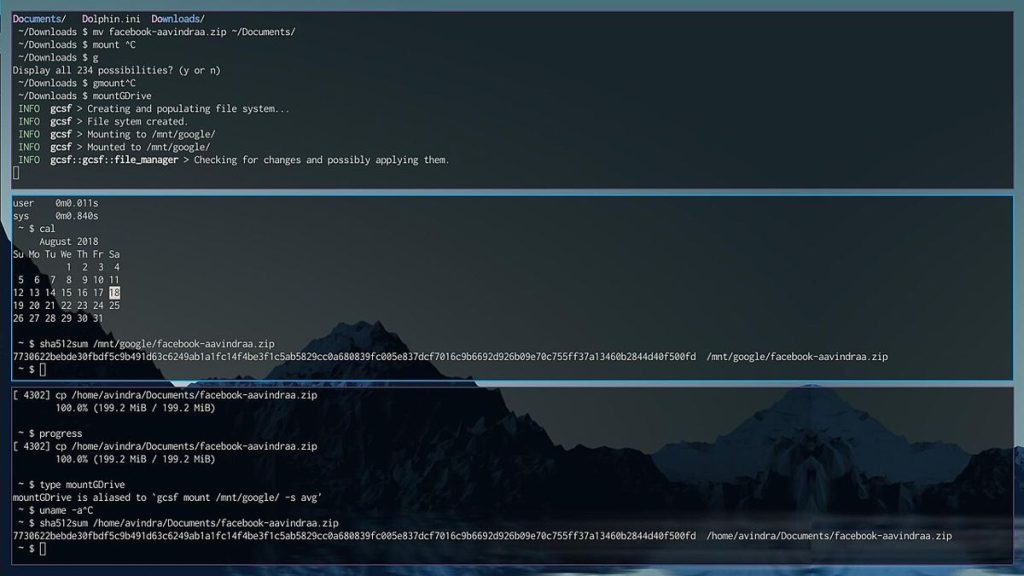
Image credit: Aavindraa via Wikimedia Commons (CC0).

Written by
The Templates Hub editorial team writes practical, plain-English guides for everyday readers.
More articles by this author →
Point of Care Medicine Templates: Types, Benefits and Risks
In a busy clinic, documentation competes with the patient for attention. Point of care medicine templates are structured…
One Pager Templates: Layouts and Tips for a Clear Summary
Busy people rarely read long documents, which is why a single page can carry more weight than twenty.…
Microsoft Word Templates: Find, Edit and Build Your Own
Word has been the default tool for letters, reports and CVs for decades, and Microsoft Word templates are…

Microsoft Templates for Word, Excel and PowerPoint Explained
People searching for Microsoft templates usually want one thing: a ready-made file that saves them an hour. The…