
Starting from a blank page is slow, and a template changes that. Google docs templates remove that step by giving you a finished structure, with headings, spacing and fonts already decided, so you only fill in the content. Used well, they make your documents look consistent and save a surprising amount of time over a month.
This guide is a map. It explains where templates come from, the main types, how to adapt them, and how to build ones that suit your own work.
Where google docs templates come from
There are three common sources.
1. The built-in gallery. From the Docs home screen you can open the template gallery and browse categories such as work, education and personal. These open as a new document in your account. 2. Shared links. Someone sends a link ending in “/copy”. Opening it prompts you to make your own copy, so the original stays intact. 3. Your own files. Any document can become a template. Keep a cleaned-up version, and copy it each time.
Official help pages at Google Docs Editors Help describe the gallery and copy options and are worth a skim if something looks different on your screen.
The main types of google docs templates
Letters and correspondence
Cover letters, formal letters and resignation notes. The best ones have an address block, date line and a clear body area. Look for spacing you can edit without breaking the layout.
Business documents
Meeting agendas, minutes, proposals, project briefs and simple reports. These benefit most from templates because structure matters more than design. A good agenda template has time slots, owners and action items. Among google docs templates, these are the ones teams reuse most.
Education
Lesson plans, essay outlines, lab reports and study notes. A template here keeps formatting rules consistent, such as headings and citation spacing.
Personal
Travel itineraries, event plans, newsletters and checklists. These are more relaxed, so colour and images are welcome.
How to adapt a template properly
Adapting is more than typing over the sample text. A few habits make the result look professional.
- Change styles first. Set the Normal text, Heading 1 and Heading 2 styles to your preferred fonts, then use Format, Paragraph styles, and update to match. Everything follows.
- Delete unused sections. Leaving an empty “Appendix” heading looks careless.
- Check page breaks. Placeholders are often shorter or longer than your real text, so headings may drift to the bottom of a page.
- Use the outline. Turn on the document outline from the View menu to see your headings as navigation. If a heading is missing, it was probably formatted by hand.
Build your own reusable template
If you write the same kind of document every week, make your own.
1. Create a fresh document with the layout you like. 2. Add the headings, boilerplate text and any tables. 3. Replace specific details with obvious placeholders such as “[Client name]”. 4. Save it in a clearly labelled folder like “Templates”. 5. Make a copy every time you start a new one, instead of editing the master.
A small trick helps: add smart chips, such as dates and people, where they make sense, and use dropdown chips for status fields in project documents.
Compatibility and file formats
Google Docs files live in the cloud, but people will ask for other formats. Use File, Download to export as Word (.docx), PDF, plain text or HTML. PDF is best for sending something final. Word is best when the other person needs to edit. If you export to Word, open the file and check tables and fonts, because custom or unusual fonts may be replaced.
You can also import a Word template into Docs. Complex layouts with text boxes and columns may shift, so check page one carefully before relying on it.
Common mistakes
- Editing the original template instead of a copy.
- Pasting text from another source with its own formatting. Use Paste without formatting, which is Ctrl+Shift+V on Windows or Cmd+Shift+V on a Mac.
- Using too many fonts. Two is enough.
- Sharing with edit access when view or comment would do.
- Forgetting to check the document title. Names like “Copy of Untitled” look sloppy in someone’s inbox.
Accessibility basics
Good templates make documents easier for everyone to read. Use real headings, not bold text, so screen readers can navigate. Add alt text to images. Keep contrast strong between text and background, and do not rely on colour alone to show meaning. Descriptive link text such as “read the budget summary” works better than “click here”.
Quick decision guide
- Need something formal and fast? Pick a plain letter or report layout.
- Need teamwork? Choose a template with tables for owners and dates, then share with comment access.
- Need style? Select one with a cover area and an accent colour, then limit yourself to one image.
The best of all google docs templates is the one you will actually use again. Start with a built-in layout, adjust the styles once, and save the result. After a few weeks you will have a small personal library that makes every new document faster.
More guides you may like
- How to Price Your Services Without Guessing
- How to Choose a Website Template for Your Business
- Google Doc Templates: Build, Share and Reuse Them Properly
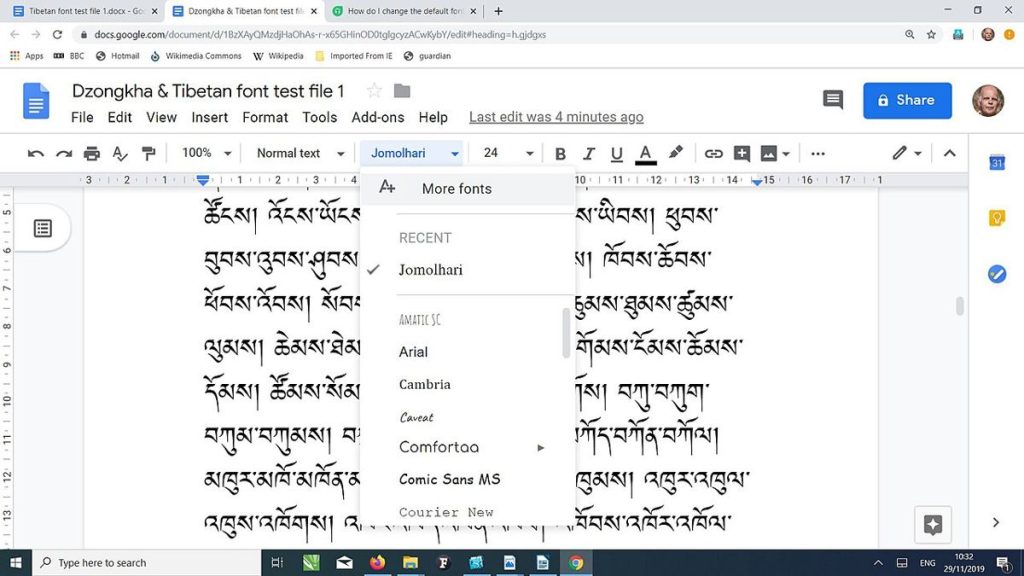
Image credit: Christopher J. Fynn via Wikimedia Commons (CC BY-SA 4.0).

Written by
The Templates Hub editorial team writes practical, plain-English guides for everyday readers.
More articles by this author →
Point of Care Medicine Templates: Types, Benefits and Risks
In a busy clinic, documentation competes with the patient for attention. Point of care medicine templates are structured…
One Pager Templates: Layouts and Tips for a Clear Summary
Busy people rarely read long documents, which is why a single page can carry more weight than twenty.…
Google Drive Templates: Organise and Reuse Your Files
Most people treat Drive like a junk drawer where files go to be lost. A cleaner approach is…
Microsoft Word Templates: Find, Edit and Build Your Own
Word has been the default tool for letters, reports and CVs for decades, and Microsoft Word templates are…