
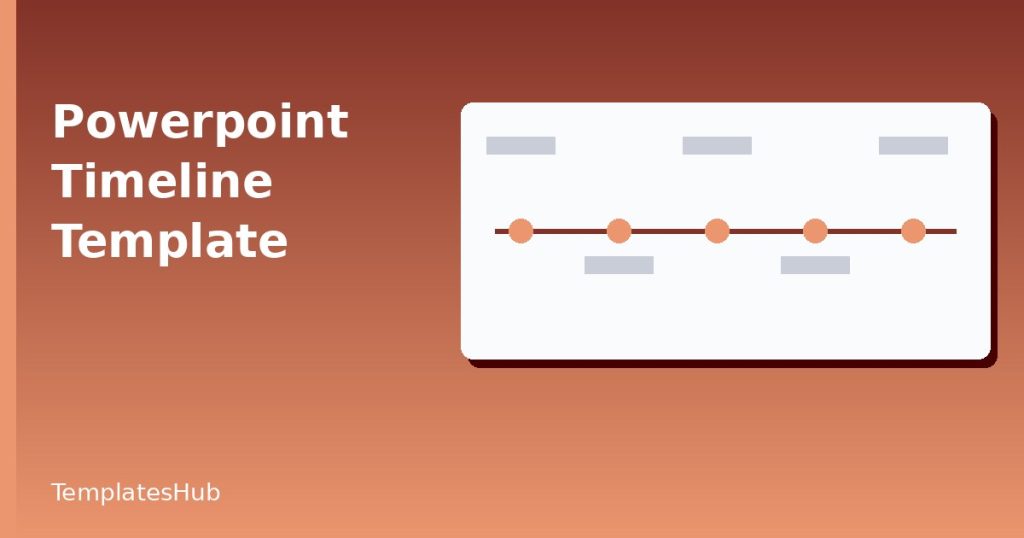
A PowerPoint timeline template is a slide with a line, markers and labels already arranged, so you only type in your dates and milestones. Timelines suit project plans, company histories, product roadmaps and school reports. They work because the eye can follow a line from left to right far faster than it can read a paragraph. This guide shows how to build one yourself and keep it readable.
Planning Before You Open PowerPoint
Write your events in a list first, with a date and a short label for each. Aim for five to eight items per slide. If you have more, split into phases or use two slides. Decide whether the dates are real calendar dates, such as March 2027, or relative stages, like Week 3. This choice determines how you space things.
Building a PowerPoint Timeline Template Step by Step
- Insert a new blank slide and set it to widescreen.
- Draw a straight horizontal line with the Shapes menu, about two thirds of the way down the slide. Make it thick enough to see from the back of a room.
- Add circles on the line for each milestone. Use Align and Distribute so spacing is equal, or scale spacing to the dates if time gaps matter.
- Insert text boxes above and below the line, alternating, so labels do not collide.
- Put the date in bold and the description beneath it in regular text.
- Connect each label to its marker with a thin vertical line.
- Group everything, then save the slide as a template so you can reuse it.
Using SmartArt as a Shortcut
PowerPoint has built-in SmartArt under the Insert tab. Choose Process, then pick a basic timeline or a similar layout. Type your points into the pane at the side and the graphic updates. It is quick, though less flexible than hand-drawn shapes, so convert to shapes if you need custom positions.
Design Choices That Help the Audience
- Limit colour: use one colour for the line and a second for highlights.
- Use icons sparingly: a small symbol per milestone helps, a dozen cluttered ones do not.
- Keep text short: a phrase, not a sentence. Speak the detail aloud.
- Font size: at least 14 points for labels, larger for dates.
- Highlight now: mark the current stage with a bigger or different-coloured marker.
Vertical, Horizontal or Curved?
Horizontal fits widescreen slides best and feels natural to read. Vertical suits long lists with more text per item, and works well in portrait documents. Curved or zigzag layouts add interest but make spacing harder to judge. When in doubt, go horizontal.
Animating the Timeline
Reveal each milestone with a simple Appear or Fade animation, in order, so you can talk through events one at a time. Avoid spins and bounces. Set the animation to start on click, which keeps you in control of the pace. Remember to export a static version as a PDF for anyone who will read it without you presenting.
Common Problems
Overlapping labels are the number one complaint, usually solved by alternating above and below the line. Uneven gaps are another, fixed with the distribute tool. Finally, text too small to read ruins the slide. If you must shrink the font to fit, you have too many items. A good PowerPoint timeline template should stay uncluttered after you fill it in, so cut ruthlessly and move detail to a handout.
Example Timeline Content
Suppose you are presenting a website project. Your markers could read: Kickoff in January, Design approved in February, Build complete in April, Testing in May, Launch in June. Each gets a one-line note, such as the person responsible. The audience sees the sequence at once and you explain the rest aloud. Save the finished PowerPoint timeline template as a copy before presenting, so the original stays blank for the next project.
FAQ
How many milestones fit on one slide?
Five to eight is comfortable. More than ten becomes hard to read.
Can I link it to project data?
PowerPoint does not update from spreadsheets automatically, so update the slide by hand or paste a refreshed image.
Which font works best?
A clean sans-serif such as Calibri or Arial is easy to read at a distance.
Can I reuse it in Google Slides?
Yes, shapes usually carry over, though check alignment after importing.
Related Templates

Written by thadmin_r7
The Templates Hub editorial team writes practical, plain-English guides for everyday readers.
More articles by this author →
Jeopardy Template: Build a Game Board in Slides
A jeopardy template turns a slide deck into a quiz game that works for classrooms, training sessions, team…

Org Chart Template: Show Teams and Reporting Lines
An org chart template shows who reports to whom at a glance. Learn the common layouts, what to…

Google Slide Template: Find, Copy and Edit One
A Google Slide template saves time and keeps decks tidy. Learn where to find templates, how to make…

Slide Show Template: Build a Clear, Engaging Deck
A slide show template gives your talk a consistent look and structure. Learn how to choose one, edit…