
A new PowerPoint deck can eat an afternoon before you have written a single useful sentence. Free powerpoint templates offer a shortcut: ready-made layouts, colours and fonts you can fill with your own content. They also come with a few risks that blank presentations do not have, from unsafe downloads to broken fonts. This guide explains how to download wisely, edit the file properly and avoid the problems that appear when you open the deck on someone else’s computer.
Downloading free PowerPoint templates safely
Free powerpoint templates are normally .pptx for current PowerPoint, with .potx used for true template files and .ppt for older versions. Treat any download with the same caution as other files from the internet.
- Download from sources that look established, with clear contact and licence information.
- Be wary of .exe, .zip files that contain executables, or any file asking you to enable macros. A normal template deck does not need macros, and .pptm files, which can contain them, deserve extra suspicion.
- Keep your operating system and Office software updated, and use antivirus protection.
- Open unknown files in Protected View, which Office uses by default for downloaded documents. Enable editing only after you are comfortable.
If your device offers a scan option for downloaded files, use it. Microsoft explains Protected View and file safety on its support site.
Understand the slide master
The feature that separates a good template from a messy one is the slide master. Open the View tab and choose Slide Master. Here you can set fonts, colours, backgrounds, logo positions and placeholder styles that apply to every slide. When a template is built properly, changing the heading font here updates the entire deck in one go.
If you add a new slide, use Home > Layout to choose from the template’s layouts, rather than pasting text into loose boxes. Layout-based slides stay consistent, show correctly in outline view and are friendlier to screen readers.
Editing in a sensible order
1. Save a copy of the template with a new name before you edit. 2. Adjust the theme. Under Design > Variants, tweak colours and fonts to suit your brand, or define your own in the master. 3. Delete unused layouts and slides to reduce clutter and file size. 4. Add your content in the placeholders, one idea per slide. 5. Replace pictures using Change Picture so the cropping and position stay intact. 6. Check the reading order and add alt text to meaningful images. 7. Run through the slideshow with transitions and animations to make sure everything behaves.
Fonts: the hidden problem
Fonts are the usual reason a deck looks different on another machine. If a template uses a typeface that is not installed on the presenting computer, PowerPoint substitutes another one, changing spacing and line breaks. Fixes include:
- Choosing standard fonts that come with Office.
- Installing the template’s font on every computer you will use, if the licence permits.
- Embedding fonts when you save, where the option is available. Check the file options, since some fonts cannot be embedded because of their licence.
- Exporting a PDF for sharing, which locks the appearance.
Colour, contrast and style
Use the colour palette in the theme and avoid picking random colours from the picker. Keep text sizes consistent: headings around 32 to 40 points, body text 20 to 28 points suits most rooms. Strong contrast matters. Dark text on a light background is the safest option, and a dark theme works if used carefully, with good brightness at the venue. Keep slide counts reasonable; ten to fifteen slides for a twenty-minute talk is a good starting estimate.
Images, charts and media
Compress pictures with Picture Format > Compress Pictures to reduce file size. Use native charts where possible, so you can edit numbers later and the text stays sharp. Embedded videos can cause trouble when you move the file, so either keep the media in the same folder or use a link and test it. If you plan to email the deck, aim for a size that mail systems will accept.
Check the licence
Reading the licence takes a minute and can prevent trouble. Typical statements allow personal and business use but forbid reselling the template. Some ask for credit, and some exclude images or fonts. If you build on someone else’s design for a client, make sure commercial use is permitted. When you are unsure, the guidance on Creative Commons licences offers a general explanation of the usual terms, although individual websites often write their own.
Compatibility with other software
PowerPoint files open in Google Slides, Keynote and LibreOffice, but complex effects may change. Animations, special fonts, SmartArt and some shapes are the usual casualties. If your audience uses a different program, test the file there. When in doubt, save a PDF, and carry that plus the .pptx on a USB drive or cloud folder.
Accessibility steps
- Use the built-in Accessibility Checker (Review > Check Accessibility).
- Give every slide a unique title.
- Add alt text to images that carry meaning, and mark purely decorative ones as decorative.
- Avoid text in images.
- Do not rely on colour only to explain a chart.
- Keep animations modest to avoid distracting or disturbing viewers.
Common mistakes
1. Leaving the sample text or someone else’s name in the deck. 2. Writing paragraphs on slides, instead of keeping notes in the speaker notes. 3. Using different font sizes on every slide. 4. Adding heavy animations, which slow down playback. 5. Not testing on the presentation computer. 6. Ignoring the template’s aspect ratio. A 16:9 deck on a 4:3 projector will have black bars or stretched content.
Before you present
Run the slideshow from beginning to end, using presenter view and speaker notes. Check that audio and video work, that links open, and that the file opens from the machine you will use. Keep a backup in PDF. Arrive early to test connectors and screen resolution.
Free powerpoint templates can give you structure and polish, but the quality of the final deck depends on your own care: download safely, learn the slide master, watch fonts and licences, and test where you will present.
More guides you may like
- How to Price Your Services Without Guessing
- How to Choose a Website Template for Your Business
- Free Google Slides Templates for Work, School and Pitches
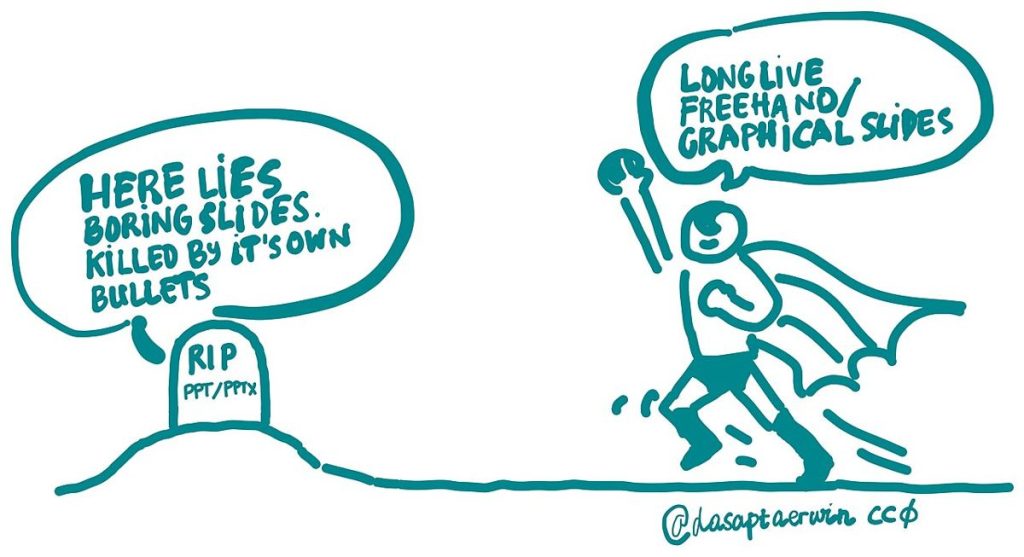
Image credit: Dasaptaerwin via Wikimedia Commons (CC0).

Written by
The Templates Hub editorial team writes practical, plain-English guides for everyday readers.
More articles by this author →
Google Slide Templates Free: Licence and Format Checklist
Google slide templates free: a starting point, not a guarantee Plenty of google slide templates free of charge…

Google Slide Templates: A Step-by-Step Setup Guide
Picture a Monday meeting where three people present three decks, each with a different font, a different logo…

PowerPoint Presentation Templates for Pitches and Reports
The difference between a forgettable slide deck and one that sticks rarely comes down to software skill. It…

Power Point Templates: Spot a Good One and Edit It Well
Search habits are funny: plenty of people type “power point” with a space, and what they want is…