
You open a new message, look for the little My Templates icon and it simply is not there. The problem of Outlook templates missing is one of the most common complaints from people who rely on saved replies, and it usually has a boring explanation rather than a serious one. Here are the likely causes and the fixes, in the order that tends to save the most time.
First, work out which Outlook you are using
Outlook is no longer a single program. The look and the features differ between:
- Classic Outlook for Windows (the long-standing desktop app).
- The new Outlook for Windows and Outlook for Mac.
- Outlook on the web, used in a browser.
- Mobile apps for iOS and Android.
The My Templates feature, for example, lives in some versions only, and the mobile apps do not have it at all. Check File > Office Account (classic) or the settings page (new and web) to see what you are running.
Why Outlook templates go missing
1. The My Templates add-in is turned off
In classic Outlook, My Templates is delivered as an add-in. If it is disabled, the icon vanishes. Go to File > Options > Add-ins, choose COM Add-ins from the Manage list, click Go and tick the box for the templates add-in if you see it. Restart Outlook afterwards.
2. Your account type does not support it
The feature relies on Exchange or Microsoft 365 mailboxes. If you use a plain IMAP or POP account, such as a provider that is not Microsoft, the add-in may not load. Adding the account as an Exchange or Outlook.com mailbox, where available, can restore it.
3. An administrator has switched it off
At work, your IT team can disable add-ins or the feature for the whole organisation. If your colleagues cannot see it either, ask the administrator. The relevant setting is in the Microsoft 365 admin centre under organisational messages or add-in management.
4. The saved file is in a location Outlook cannot see
If your problem is that the old .oft template files have disappeared from the list, check where they are stored. In classic Outlook, templates saved in the default location appear under User Templates in File System. Press Windows key + R and type %appdata%\Microsoft\Templates to open the folder. If your files are elsewhere, copy them here.
5. A profile or update glitch
Sometimes an update changes the interface. Check File > Office Account > Update Options > Update Now. If problems persist, create a new Outlook profile through the Control Panel’s Mail settings; a fresh profile often clears odd issues without losing mail.
Quick alternatives while you fix it
- Quick Parts. On the Insert tab, select your reply text and choose Quick Parts > Save Selection to Quick Part Gallery.
- Auto-text in a notes file. Keep replies in a plain document and paste when needed.
- Saved drafts. Store a message in the Drafts folder and copy from it.
- Rules and signatures. A signature can hold longer standard text for repeated closings.
Microsoft’s Outlook support pages list which features each version includes.
Step-by-step check for classic Outlook
- Close Outlook completely and reopen it.
- Open a new message and look for My Templates on the Message tab.
- If it is missing, open File > Options > Add-ins and check disabled items.
- Repair Office from the Windows Settings apps list.
- Try the web version; if it appears there, the issue is local to your desktop app.
Prevent it happening again
Keep a backup of your templates outside Outlook. A simple note or shared document with the text of each saved reply means you can rebuild quickly. It is also sensible to export your .oft files to a cloud folder. For tips on writing good replies in the first place, read our general guide to Outlook templates, and if your inbox is a source of stress, the piece on how to reduce stress offers some calm habits.
When to contact support
If you have tried the steps above and the feature is still missing, collect the version number from File > Office Account, your account type and a screenshot of the toolbar. Send those to your IT team or Microsoft support so they can see right away what you are working with.
The short version
When Outlook templates go missing, it is almost always an add-in setting, an account type or an admin policy. Work through those three, use Quick Parts as a stopgap, and keep your own backup of the text so the problem never costs you more than a few minutes.
What to do on a shared or locked-down work computer
On a managed laptop you may not be allowed to change add-in settings or repair the installation. In that case, avoid fighting the system. Test whether the web version at outlook.office.com shows the My Templates button; if it does, you can create and use templates there while IT investigates the desktop app. Ask them one specific question: “Is the My Templates add-in blocked for my account or my group?” A precise question gets a faster answer than “Outlook is broken”.
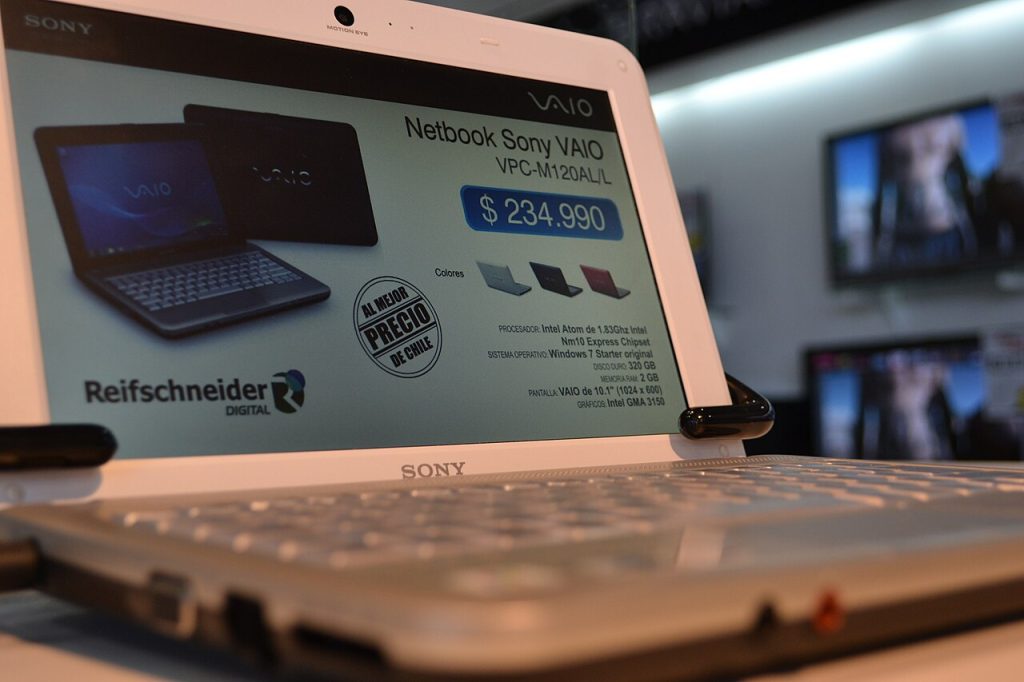
Image: “Sony Vaio VPC-M120AL 2” via Wikimedia Commons, CC BY 2.0.

Written by
The Templates Hub editorial team writes practical, plain-English guides for everyday readers.
More articles by this author →
Outlook Templates: Save Time on Repeated Emails and Replies
If you type the same email four times a week, you are doing a job that Outlook templates…
Outlook Signature Templates: Design and Install in Minutes
Every email you send ends with a small piece of branding you did not have to think about,…

Newsletter Templates Free: Best Sources and What to Check
You do not need a design budget to send a tidy email. Plenty of tools and websites offer…

Newsletter Templates: Layouts That Get Read in 2026
A newsletter is a promise: the same kind of useful message, arriving on a schedule. Keeping that promise…