
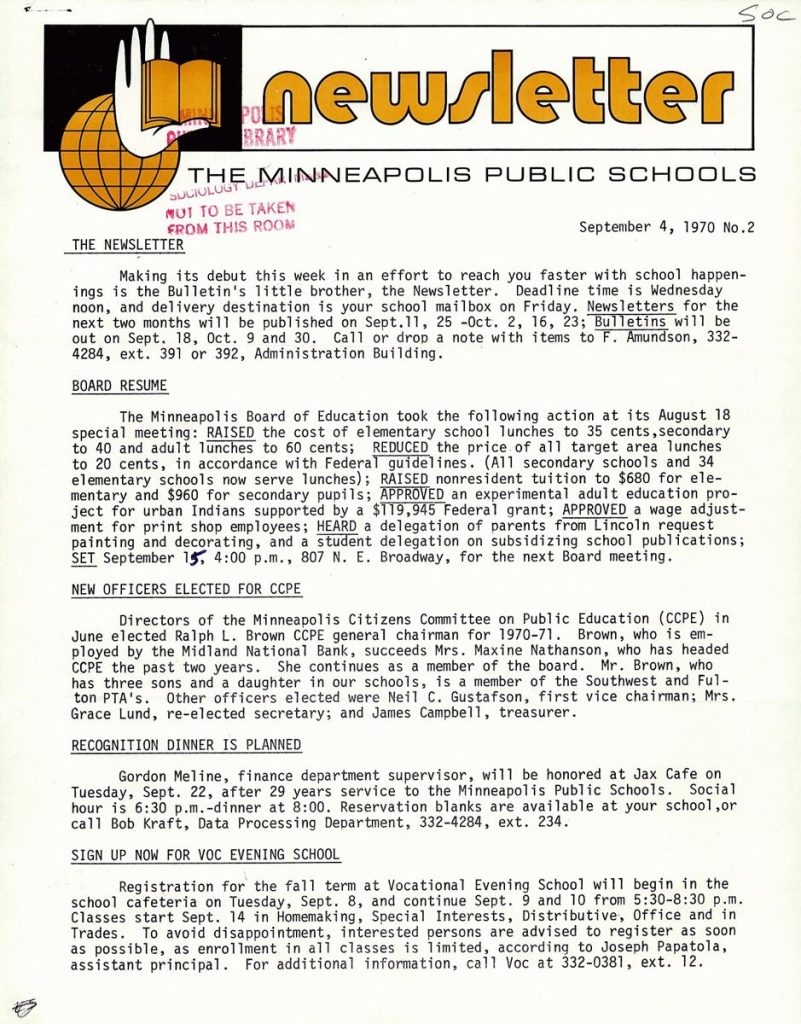
Sending a newsletter should feel manageable. The trouble starts when the design takes longer than the writing. Free newsletter templates solve this by giving you a tested layout with a header, content blocks and footer already in place. What follows is a practical, step-by-step guide to turning a template into an email people will open, read and, ideally, look forward to receiving.
Step 1: Decide what your free newsletter templates must do
Before you look at a single layout, write one sentence that states the purpose. For example: “A monthly update that tells customers what is new and offers one useful tip.” A clear purpose guides the template choice. A shop sending offers needs product blocks and buttons. A school or club needs space for events and short notices. A writer sharing essays needs a plain, text-first design.
Step 2: Choose a layout type
Single column
Single-column templates read well on phones, where most email is opened. They are simple, reliable and a good default.
Two columns or grids
These suit product listings or short news items, but must stack neatly on small screens. Check the preview on a narrow window before you commit.
Text-focused
For personal or professional writing, a plain template with minimal graphics feels like a message from a person and often loads faster.
Whatever you choose, avoid templates with many small buttons, busy backgrounds or tiny type. Readers skim, and clutter makes them leave.
Step 3: Choose the file format
Free newsletter templates come in a few forms:
- HTML files: Flexible but fragile. They need an email service that accepts custom HTML, and email apps handle code differently.
- Templates inside an email platform: You edit within the tool and send directly. Convenient, though details depend on the platform.
- Word, Google Docs or PowerPoint files: Suitable for printed or PDF newsletters, such as for schools and clubs.
- Design editor templates: Good for visuals, but exported images do not behave like real email text, so keep important information as actual text.
Match the format to your delivery method. If you send by email, an HTML or platform template is better. For a PDF newsletter, document formats are fine.
Step 4: Customise your newsletter template
1. Replace the header with your name or logo. Keep it short so it does not push content down. 2. Set your colours and fonts. Web-safe fonts display more reliably in email than unusual ones. 3. Write a subject line and a preview text. These two lines decide whether the message gets opened. 4. Put the most important item first. Do not assume people will scroll. 5. Break content into short blocks with clear subheadings. 6. Add one primary call to action, such as “Read the full guide” or “Book a spot”. Several competing buttons weaken each other. 7. Include a footer with your name, contact details and a way to unsubscribe.
Step 5: Images and size
Compress images before uploading. A few hundred kilobytes per picture is a good target, and the whole email should stay reasonably light so it loads on mobile data. Add alt text for each image, as many email programs block images by default. If the message depends on a picture to make sense, change it. Use real text for key details like dates, prices and links.
Step 6: Test before you send
- Send a test to yourself and open it on a phone and a computer.
- Check links by clicking each one.
- Read the text out loud for typos.
- Try different email apps if you can, since rendering varies.
- Confirm that the unsubscribe link works.
- Look at the message with images turned off.
Testing takes ten minutes and prevents most embarrassing mistakes.
Step 7: Rules and permission
Sending marketing email brings legal duties that vary by country. Typical requirements include getting permission from recipients, identifying the sender, providing a postal address in some regions and honouring unsubscribe requests promptly. Do not buy email lists. Check your local rules or ask a professional if you are unsure. Keep a simple record of how and when each person subscribed.
Step 8: Licence and credit
Look at the template licence to confirm business use is allowed, and see whether you need to credit the designer. Images, icons and fonts in a template can have separate terms. When you add photographs of your own, you are safe; when you use others, record the source and licence. The Creative Commons licence guide is a good reference for what common licence terms permit.
Accessibility notes
Use real headings, not just large bold text. Keep link text descriptive, such as “Read the spring schedule”, not “click here”. Choose text colour with strong contrast against the background, and avoid putting essential information only in an image. Keep font size at 14 to 16 pixels or larger for body text.
Step 9: Build a rhythm
Consistency matters more than perfection. Pick a schedule you can sustain, whether weekly, fortnightly or monthly, and keep the structure similar each time. Save your finished layout from one of the free newsletter templates as your own master template, with placeholders for the standard sections. Next issue, you just replace the content.
Common mistakes
- Writing a subject line that promises something the email does not deliver.
- Using a single large image with no text.
- Stuffing every update you have into one email.
- Forgetting to update the year or date in the footer.
- Sending without a test.
- Ignoring unsubscribe requests or making them hard.
Measure and adjust
Most platforms report open and click rates. Use them as rough signals, not as absolute truth, because privacy features in some email apps affect open tracking. Pay more attention to replies, clicks on useful links and unsubscribes. If a section never gets clicks, drop it or move it.
Free newsletter templates remove the design hurdle. The work that matters, a clear purpose, honest subject lines, light images and respectful sending practices, still comes from you, and that is what keeps readers on your list.
More guides you may like
- Small Business Bookkeeping Basics for Beginners
- How to Choose a Website Template for Your Business
- Free Invoice Templates: Fields, Formats and Common Mistakes
Image credit: Wikimedia Commons contributor via Wikimedia Commons (Public domain).

Written by
The Templates Hub editorial team writes practical, plain-English guides for everyday readers.
More articles by this author →
Outlook Templates Missing? 5 Causes and Quick Fixes
You open a new message, look for the little My Templates icon and it simply is not there.…

Outlook Templates: Save Time on Repeated Emails and Replies
If you type the same email four times a week, you are doing a job that Outlook templates…
Outlook Signature Templates: Design and Install in Minutes
Every email you send ends with a small piece of branding you did not have to think about,…

Newsletter Templates Free: Best Sources and What to Check
You do not need a design budget to send a tidy email. Plenty of tools and websites offer…