
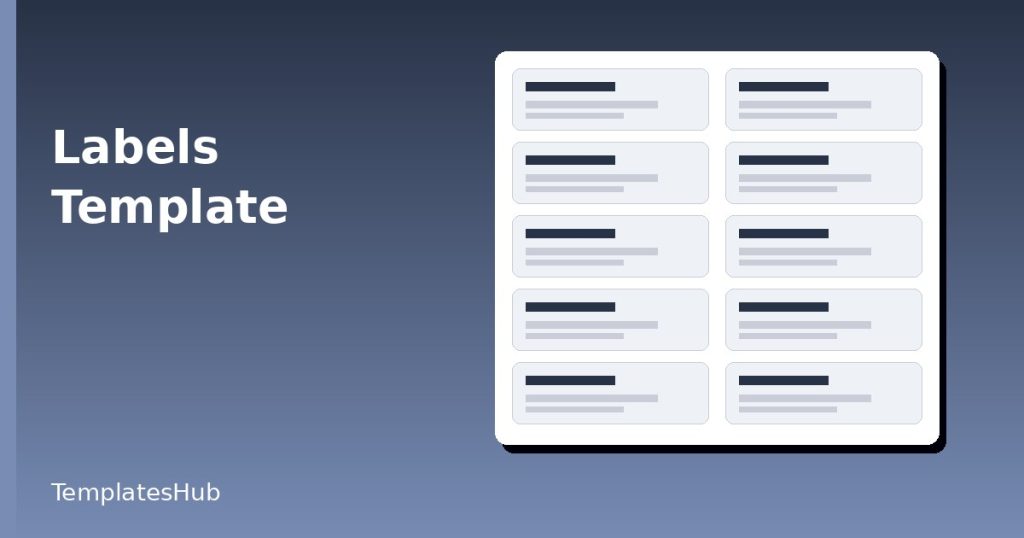
A labels template is a layout that matches the exact size and position of the labels on a sticker sheet, so whatever you design prints inside each one. You can use it for jar labels, shipping labels, file folders, name tags, bottle stickers and craft projects. Printing straight onto sheets without a template usually ends with text hanging off the edge. This guide walks through picking the right layout, designing the label and printing a clean first batch.
Start With Measurements for Your Labels Template
Everything depends on the sheet you bought. Check the packaging for the product code, label shape, label size and how many are on a page. If you have no packaging, measure one label with a ruler and measure the gaps between labels and the margins at the top and left of the sheet.
You need these numbers:
- Label width and height, or diameter for round ones.
- Number of columns and rows.
- Horizontal and vertical gap between labels.
- Top and left margin of the first label.
Many brands publish free downloadable templates for their product codes, and word processors list common ones. If yours is not there, enter the numbers manually to build a custom layout.
Setting Up the Grid
- Open a new document and set the page size to match the sheet, typically Letter or A4.
- Insert a table with the same number of columns and rows as the sheet. For round labels, use the table as a guide and place circles over it.
- Set each cell width and height to the label size, and add spacer columns or rows to equal the gaps.
- Set the page margins to match the top and left edges of the first label.
- Switch borders on temporarily so you can see the structure, then turn them off before printing.
A Quick Alignment Test
Print the grid with borders on plain paper, then hold it over a real label sheet against a window. If the lines fall on the label edges, you are ready. If everything shifts slightly, adjust the margins by half a millimetre at a time.
Designing the Label Itself
Keep labels simple. A small surface leaves little room for decoration, and clear information matters more than extras.
- Hierarchy: the product or name in the biggest text, details in smaller text.
- Contrast: dark text on a light background is the safest choice, especially for small sizes.
- Safe zone: keep text at least 2 to 3 mm from the label edge, because printers and cutting are not perfectly exact.
- Bleed: if the background colour runs to the edge, extend it a little beyond the label so no white line appears.
- Type size: body text below 7 points becomes difficult to read on printed stickers.
Design one label first, then copy it to every cell. For several different labels, such as a set of spice jars, duplicate the layout and change the text in each cell.
Printing Properly
Set scaling to actual size or 100 percent. Fit to page distorts the grid. Choose the correct paper type in printer settings, such as labels or heavy paper. Load one sheet, print, and check alignment before using more. Ink labels need time to dry, while laser prints dry instantly but should only go on laser-safe sheets.
Materials and Finishes
- Matte paper: good for writing on and for everyday use.
- Glossy: colours look richer, so it suits photos and food labels.
- Waterproof or vinyl: useful for bottles, tools or anything damp.
- Clear: gives a no-label look on glass.
Reuse and Storage
A saved labels template turns the next batch into a five-minute job.
Save your layout with the label code in the file name, such as labels-30up-1×2.625. Keep a blank version and a finished version. Store unused sheets flat, away from heat, because curling sheets jam printers.
FAQ
Do I need a special program?
No. Word processors, slide tools and free design apps can all handle a labels template.
Why does my print shift to one side?
Printers have their own hardware margins. Adjust the page margins slightly or turn off any shrink-to-fit option.
Can I print one label from a full sheet?
Yes, if you tell the software which row and column to use, or fill the other cells with blanks.
What file type should I save?
Keep the editable file and also export a PDF for printing to preserve the layout.
Related Templates

Written by thadmin_r7
The Templates Hub editorial team writes practical, plain-English guides for everyday readers.
More articles by this author →
Gingerbread House Template: Print, Cut and Build Guide
A gingerbread house template saves guesswork. Learn how to print the pieces, cut dough accurately, bake flat panels…
Missing Poster Template: Make a Clear, Useful Flyer
A missing poster template helps you share key details fast. Learn what to include for a lost pet…
Comic Template: Panel Layouts for Strips and Short Stories
A comic template provides ready-made panels for strips, classroom stories and webcomics. Pick a layout, plan the beats…
Address Label Template: Set It Up and Print Without Misalignment
An address label template is a pre-measured grid that matches a sheet of sticky labels, so each name…