
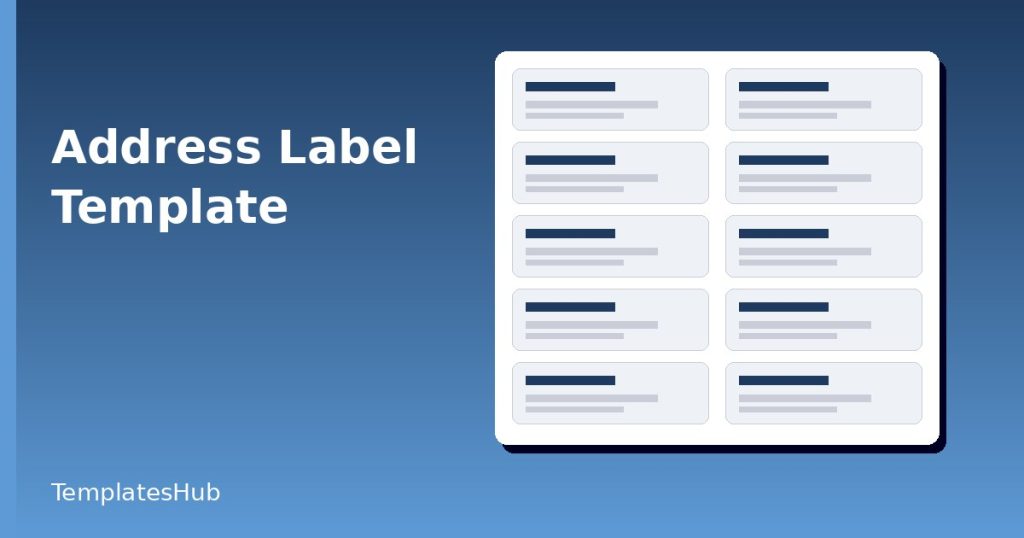
An address label template is a pre-measured grid that matches a sheet of sticky labels, so each name and address lands exactly in the right box. Holiday cards, wedding invitations, small business parcels and club mailings all go faster when you set it up once and merge a list into it. Done badly, text slides off the edge or prints across two labels. Here is how to set it up properly, step by step.
Start With the Label Sheet You Actually Have
The template must match the physical sheet. Look at the packet or the back of the label box. You will see a product code, the number of labels per sheet and the label size. Common layouts are 30 labels per sheet at 1 by 2 5/8 inches (a standard US format), 14 labels per sheet at about 99 by 38 mm, and 21 labels at 63.5 by 38.1 mm in Europe.
Word processors have these built in. In Microsoft Word, go to Mailings, then Labels, then Options, and choose the vendor and product number. Google Docs has add-ons that do the same. If your sheet code is missing, create a custom size by entering the label width, height and margins.
Building the Address Label Template
- Create the grid. Choose the label type and create a new document. You will see a table of empty cells, one per label.
- Set the font. Use 10 or 11 points for a standard label. Pick a clear font such as Arial or Calibri.
- Align the text. Left aligned is easiest to read. Centre it for decorative labels, for example on wedding invitations.
- Fix the spacing. Set paragraph spacing to zero, so three or four address lines fit without getting pushed onto the next label.
- Leave a safe margin. Keep text about 3 mm from the edges because printers rarely hit the exact edge.
Merging a Mailing List
To print many different addresses, keep your list in a spreadsheet. Use one column for each part: first name, last name, street, city, state or region, postal code and country. Clear headings in the first row are essential.
In the mail merge tool, select the spreadsheet as the data source and insert the fields in the first label in the order you want, with line breaks where needed. Then use the update labels option to copy the layout to every cell. Preview the results and scroll through a few labels to catch cases where a long street name wraps awkwardly.
Cleaning Your Data
- Remove duplicate rows.
- Fix capital letters so names do not appear all in upper or lower case.
- Keep postal codes as text so leading zeros are not dropped.
- Delete blank rows, which print blank labels.
Printing Without Waste
A good address label template still needs a test print.
Always print the first page on ordinary paper. Place it behind a label sheet and hold both up to a light to check that the text sits within each label. Adjust margins if it drifts. Set the printer to actual size, not fit to page, which silently shrinks everything and ruins the alignment.
Check the paper feed. Many home printers need the label sheet face up or face down, depending on the model, and the tray guides snug against the sheet. Feed one sheet at a time for the first few tries. Choose the heavy paper or label setting if available, which slows the paper path and helps ink dry.
Return Address Labels
You can use the same approach for a sheet of identical return labels. Type the address once, then use the option that copies it to the full sheet. A small logo or a short line, such as the name of your shop, makes parcels look neater.
Common Problems
If an address label template misbehaves, one of these is usually the cause.
- Text printing off centre: a printer margin issue, so adjust the top and left margins by a millimetre or two.
- Labels drifting down the sheet: usually scaling, so check the print size setting.
- Ink smudging: choose a laser-friendly or inkjet-friendly label matched to your printer.
- Last row cut off: reduce the bottom margin, or confirm the template matches the sheet.
FAQ
Which program is easiest?
Word has the most built-in label formats, though Google Docs and LibreOffice also work well.
Can I use any brand of label?
Yes, as long as the measurements match. Check the size and count.
How do I print a single label?
Select the row and column of the label before printing, then feed a partly used sheet.
Do I need a special printer?
No. A normal inkjet or laser printer works if you choose matching label sheets.
Related Templates

Written by thadmin_r7
The Templates Hub editorial team writes practical, plain-English guides for everyday readers.
More articles by this author →
Gingerbread House Template: Print, Cut and Build Guide
A gingerbread house template saves guesswork. Learn how to print the pieces, cut dough accurately, bake flat panels…
Missing Poster Template: Make a Clear, Useful Flyer
A missing poster template helps you share key details fast. Learn what to include for a lost pet…

Comic Template: Panel Layouts for Strips and Short Stories
A comic template provides ready-made panels for strips, classroom stories and webcomics. Pick a layout, plan the beats…
Pamphlet Template: Layouts, Folds and Print Setup
A pamphlet template makes folded handouts easy. Learn which fold to choose, how to arrange text and images,…