
When a client or recruiter searches your name, your portfolio is the first real evidence they see. Building one from scratch can eat weeks, which is why portfolio website templates are so popular: a ready-made design with places for your projects, your story and a contact form. The trick is picking a template that shows your work well and then making it feel like yours.
What makes a good portfolio template?
Visitors decide within seconds whether to keep looking. A strong template helps with this by:
- Putting your best work first, usually on the home page and without too many clicks.
- Loading fast. Large images and heavy animations can make a site feel slow, especially on mobile.
- Being responsive. Most visitors will see it on a phone, so check small screens first.
- Letting the work speak. A neutral layout with generous white space frames projects without competing with them.
- Making contact simple. A visible email address or form on every page.
Types of portfolio website templates
Grid and gallery layouts
Ideal for photographers, illustrators and designers. Thumbnails open into larger project pages. Look for options that let you reorder items without code.
Case study layouts
Better for UX designers, developers and writers, where the story of a project matters as much as the result. They include sections for problem, process and outcome.
One-page portfolios
A single scrolling page with about, work and contact sections. Fast to build and easy to maintain, but limited if you have many projects.
Blog plus portfolio
A hybrid that lets you publish articles alongside work samples. It helps with search visibility and shows how you think.
Platform choices
Templates exist for most platforms. WordPress themes give flexibility and ownership; you can find options in our guide to choosing a website template. Website builders such as Wix, Squarespace and Webflow offer drag-and-drop editing and hosting in one package. HTML and static templates suit developers who want complete control and very fast pages. Pick the one that matches your technical comfort and how often you will update it.
How to evaluate a template before you commit
- Open the live demo on your phone and a laptop.
- Test the speed with a tool such as Google PageSpeed Insights.
- Check if the navigation is clear without instructions.
- See whether it supports the content types you have: video, PDFs, case studies.
- Read the update history and support terms.
- Confirm licence conditions, especially if you are building for clients.
What to put on your portfolio
Quality beats quantity. Show six to ten pieces you are proud of, rather than every project you have ever done. For each, add a title, a one-line summary of your role and the result. Include a short, friendly about page with a clear photo, and a contact option. If you have testimonials, place them near the work they refer to.
Writing project descriptions
Write them for someone who knows nothing about the project. State the goal, what you did and what changed because of it. Numbers help: “reduced checkout steps from five to three” says more than “improved user experience”.
Customising the template
Change the typeface pair, colour accents and hero image first, since these shape the first impression. Replace every sample text, and compress your images to a reasonable size, around 1600 pixels on the long side is plenty for most screens. Add descriptive alt text so the site is accessible and so search engines understand your images.
SEO and sharing basics
Give each page a unique title and description, use your name and discipline in the home page title and add social sharing images. Link to your portfolio from your email signature and professional profiles. If you offer services, a clear pricing or enquiry page helps; see how to price your services for ideas, and how to get your first freelance clients for ways to bring visitors in.
Legal housekeeping
Only show work you have the right to show; for client projects, get permission or anonymise details under non-disclosure agreements. If you collect emails through a form, add a short privacy notice. Our guide on how to write a privacy policy for your website covers the essentials.
Keeping it fresh
Review your portfolio every quarter. Replace older work with stronger pieces, fix broken links and check that contact details still work. A smaller, current portfolio always beats a large, outdated one.
Bottom line
Good portfolio website templates give you a head start, but your content does the persuading. Choose a clean, fast layout, curate your best work, explain your role clearly and keep the site up to date.
A short example of a good case study layout
Imagine a freelance designer who redesigned a booking form for a local clinic. On her portfolio, the project page opens with a single hero image and one sentence: “Cut missed appointments by a third with a simpler booking flow.” Underneath come three short blocks: the problem, what she changed and the result, each with one image. She ends with a quote from the clinic manager and a button that reads “Start a project”.
The page is under four hundred words and can be read in ninety seconds. That discipline is what a good template encourages: a clear order, room for a few strong visuals and no space for waffle. When you compare templates, look for this kind of structure rather than only a pretty homepage.
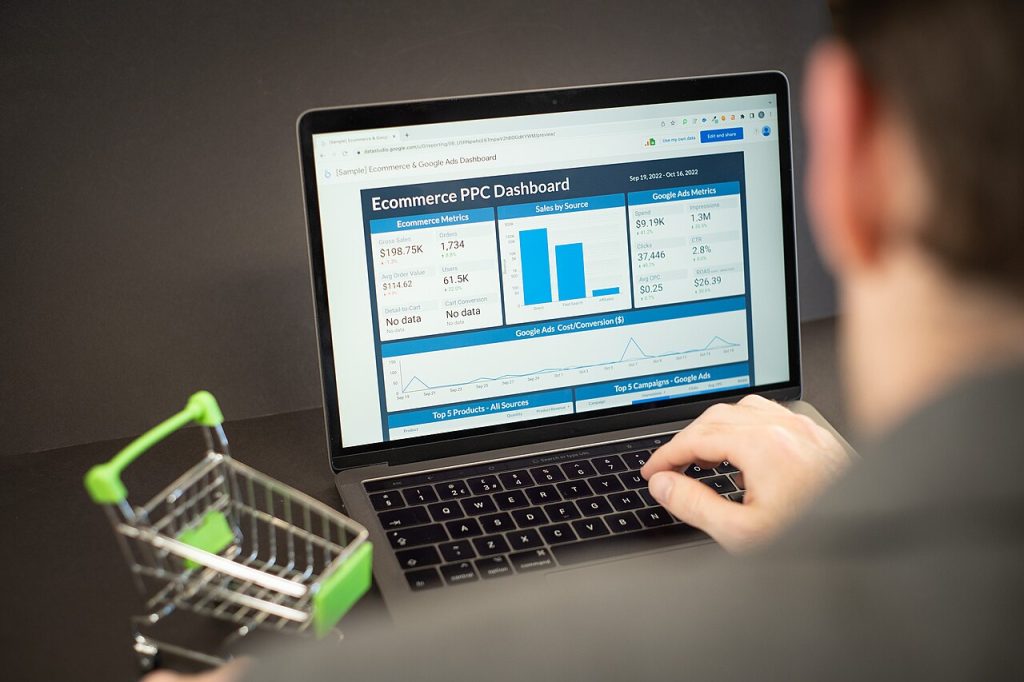
Image: “Interpreting Ecommerce Website Analytics” via Wikimedia Commons, CC BY 2.0.

Written by
The Templates Hub editorial team writes practical, plain-English guides for everyday readers.
More articles by this author →
Google Sites Templates Free: What to Check Before Copying
Free sounds simple until you copy a shared site, publish it, and later discover a photo you had…

Google Sites Templates: Layout Choices That Hold Up
Choosing between google sites templates often starts with colour, because that is what the preview shows. Layout is…

Google Site Templates: A Plain Guide for Small Projects
Say you need a page for a school club, a small shop, or a family event, and you…

Google Forms Templates: Build Surveys and Quizzes Fast
Frequently asked questions is a useful way to learn about forms, so this guide uses that format throughout.…