
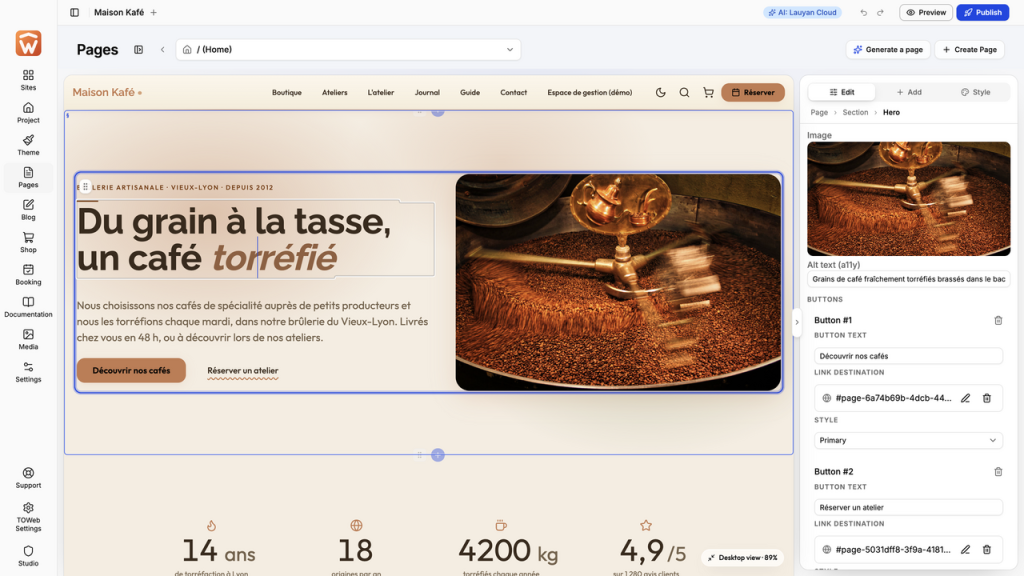
Wix is one of the best-known website builders, and its library of ready-made designs is a big reason why. Wix templates let you pick a look that fits your business, replace the sample content with your own and publish without writing code. There is one catch that catches a lot of people out, so it is worth reading how it works before you click.
The thing to know first
On Wix, you generally choose a template when you start, and the template is tied to that site. Switching to a completely different template later is not the same as changing a theme on some other platforms, because the page layouts and content are built into the design. Check the current rules on Wix’s own help pages, since features change. The practical lesson is to choose carefully at the beginning and to plan your content before you pick.
Choose by purpose
Browse by category, such as business, portfolio, online store or blog. Look at templates designed for your type of work, since they often come with sections and features pre-built, such as booking tools for services or product galleries for shops. A template for a photographer will include large image layouts, while a template for a consultant will emphasise text and trust signals.
Preview with your content in mind
Demo sites use perfect photos and short, snappy copy. Your site will have real content. Imagine your longest service name or your most awkward image sizes inside the layout. Check how the mobile version looks, which you can do in the editor’s mobile view. If the demo only looks good with professional photography, make sure you can supply similar images.
Editing tips
Start with the global design: colours and fonts, so the style is consistent. Then edit each page. Replace placeholder text with your own, adjusting headings to say what you do and for whom. Delete sections you do not need. Add a clear button on the home page that leads to the action you want, such as booking a call or buying a product.
Mobile layout
Wix lets you adjust the mobile view separately from the desktop view. Use that to tidy spacing, hide decorative elements and enlarge buttons. Always test on a real phone before publishing.
SEO basics
Fill in titles and descriptions for each page, using plain language and the phrases people would search for. Add alt text for images and create meaningful URLs. Connect your own domain name for a professional address. Wix provides tools to guide you through basic SEO, but the content still needs to be useful. For more on selection and structure, see how to choose a website template.
Speed
Large images and many animations slow down pages. Compress pictures before upload, use animation sparingly and keep the first screen light. Test speed on mobile data if you can.
Apps and features
Wix has an app market for extras like booking, chat and email forms. Add only what you need, because every addition can affect speed and complexity. Read the pricing carefully, since some apps need paid plans.
Costs
You can start for free in many cases, but a custom domain, removal of ads and many business features need a paid plan. Compare current prices on the Wix site. Remember to count renewal costs, not only the first-year offer.
Alternatives and neighbours
For more control, consider Wix Studio templates or Webflow templates. For an open platform, see WordPress templates. To compare approaches at a glance, the page about website templates covers the main options.
Before you publish
- Spelling and links checked.
- Contact form tested.
- Mobile view reviewed.
- Privacy policy added (see privacy policy for a website).
- Titles, descriptions and images optimised.
Common questions from new users
Can I change the design after launch?
You can change colours, fonts, images and layouts within your current site at any time. What is harder is swapping to an entirely different template, which is why planning matters. If you do want a new look, an option is to build a new site and move your content across, then redirect your domain.
Is a free plan enough?
For testing and learning, yes. For a business, most people need a paid plan to connect their own domain and remove platform branding. Compare current plans and read what each includes, then pick the smallest one that covers your needs.
Setting a realistic timeline
Plan a week for a small site if you are doing it alongside other work. Day one is for choosing a template and defining pages, day two for brand styles, then a day or two for text and images, and the last days for mobile checks, speed and legal pages. Publishing a clear, small site beats waiting for a perfect big one, and you can always expand it later once you know what visitors actually look for.
Conclusion
Choose a template for your purpose, plan your content first and test on phones. Wix makes launching quick, but good results come from clear content and careful editing. For background, see Wix.com on Wikipedia.

Written by thadmin_r7
The Templates Hub editorial team writes practical, plain-English guides for everyday readers.
More articles by this author →
Google Sites Templates Free: What to Check Before Copying
Free sounds simple until you copy a shared site, publish it, and later discover a photo you had…

Google Sites Templates: Layout Choices That Hold Up
Choosing between google sites templates often starts with colour, because that is what the preview shows. Layout is…

Google Site Templates: A Plain Guide for Small Projects
Say you need a page for a school club, a small shop, or a family event, and you…

Google Forms Templates: Build Surveys and Quizzes Fast
Frequently asked questions is a useful way to learn about forms, so this guide uses that format throughout.…