
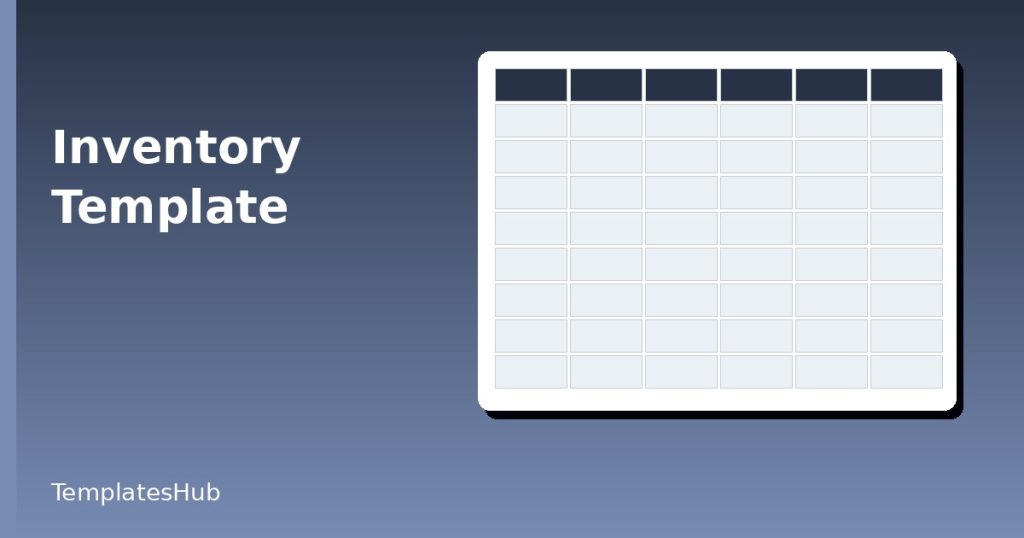
An inventory template is a spreadsheet or printed sheet that records what stock you hold, where it is and when it is time to buy more. A craft seller with two hundred items and a school with a supply cupboard have the same basic need: knowing what is on the shelf without walking over to look. Here is how to set one up so it stays accurate after the first enthusiastic week.
Columns Every Inventory Template Needs
- Item name and description: clear enough that a new colleague could find it.
- SKU or item code: a short unique identifier, such as MUG-BLU-01.
- Category: groups like packaging, tools or finished goods.
- Location: shelf, bin or room.
- Quantity on hand: the current count.
- Unit cost: what you paid for one.
- Total value: quantity multiplied by unit cost.
- Reorder level: the quantity at which you buy more.
- Supplier and lead time: who to contact and how long delivery takes.
- Last counted date.
Setting It Up Step by Step
- Walk through your stock and list everything, one row per product variant. A blue mug and a red mug are two rows.
- Assign codes. Keep a pattern, so codes sort sensibly.
- Count each item carefully, and enter the quantity.
- Add unit costs from supplier invoices.
- Enter a formula for total value, such as quantity times cost, and fill it down the column.
- Set the reorder level by thinking about how fast the item sells and how long restocking takes.
- Add conditional formatting that turns the row orange when quantity is at or below the reorder level.
Useful Formulas
A simple status column can read “Reorder” when stock hits the threshold, using an IF test comparing quantity to reorder level. A SUM at the bottom gives total stock value. If you record sales and deliveries on a separate sheet, use SUMIF to pull each item’s movements so the main sheet updates itself. These formulas are basic, yet they remove most manual arithmetic.
Keeping Counts Honest
Spreadsheets drift from reality. Items get damaged, borrowed or miscounted. Schedule a physical count, monthly for fast movers and quarterly for slow ones. Count a few high-value items weekly. Compare the result to the sheet, note differences, and correct them with a short reason, such as “damaged” or “found in storeroom”. Over time the reasons show you where leaks happen.
Recording Movement
Two approaches work. In the simple one you edit the quantity directly each time stock moves. In the safer one you keep a log sheet with date, item code, change, and note, and let the main sheet calculate the current total. The log takes more effort but gives you a history, and a well-made inventory template with a log catches errors that edits hide.
Choosing Between Paper and Digital
Paper sheets on a clipboard suit small stores and stockrooms with no signal. A spreadsheet suits most small businesses. Dedicated software becomes sensible when you have several locations or hundreds of daily transactions. Start simple, and move up only when the spreadsheet visibly struggles.
Mistakes to Avoid
- Using different names for the same item.
- Deleting rows for discontinued products instead of marking them inactive.
- Letting several people edit without rules.
- Forgetting to record returns.
- Setting reorder levels once and never revisiting them.
Example Rows to Get You Started
A small bakery might list: FLR-001, plain flour, 25 kg bags, shelf A, 12 on hand, reorder at 6. Another row could be BOX-004, cake box medium, 100 on hand, reorder at 40. Seeing a few real rows makes the logic clear. When the setup is complete, protect the formula columns and share only the quantity column with staff who count stock, so one wrong keystroke cannot damage the whole inventory template.
FAQ
How often should I update it?
Whenever stock moves, or at least at the end of each working day.
What is a good reorder level?
Average daily sales multiplied by supplier lead time, plus a small buffer.
Do I need barcodes?
Not at first. Codes typed by hand are fine for small ranges.
Can I share the sheet?
Yes, through a cloud spreadsheet, but limit who can edit key columns.
Related Templates

Written by thadmin_r7
The Templates Hub editorial team writes practical, plain-English guides for everyday readers.
More articles by this author →
Super Bowl Squares Template 2026: Printable Grid and Rules
Get a Super Bowl squares template 2026 setup: a 10x10 grid, how the digits work, payout ideas, and…

Budget Excel Template: Track Income, Bills and Savings
A budget Excel template adds totals and charts to your monthly plan. See how to set up sheets,…

To Do List Template: Layouts That Help You Finish Things
A to do list template helps you sort tasks by priority and deadline. See layouts that work, how…
Excel Calendar Template: Build and Use Your Own
An Excel calendar template updates dates automatically and prints cleanly. Learn where to find one, customise colours, add…